History
How to use History tab
Written By Lukas Pavelka
Last updated 2 months ago
This new tab from version 5.7 is a great extension for your playground with your designs to Power Apps. You can see summary of all actions executed via this plugin and history of YAML code saved in storage of selected node in Figma. Let me show you how to use it. 👇
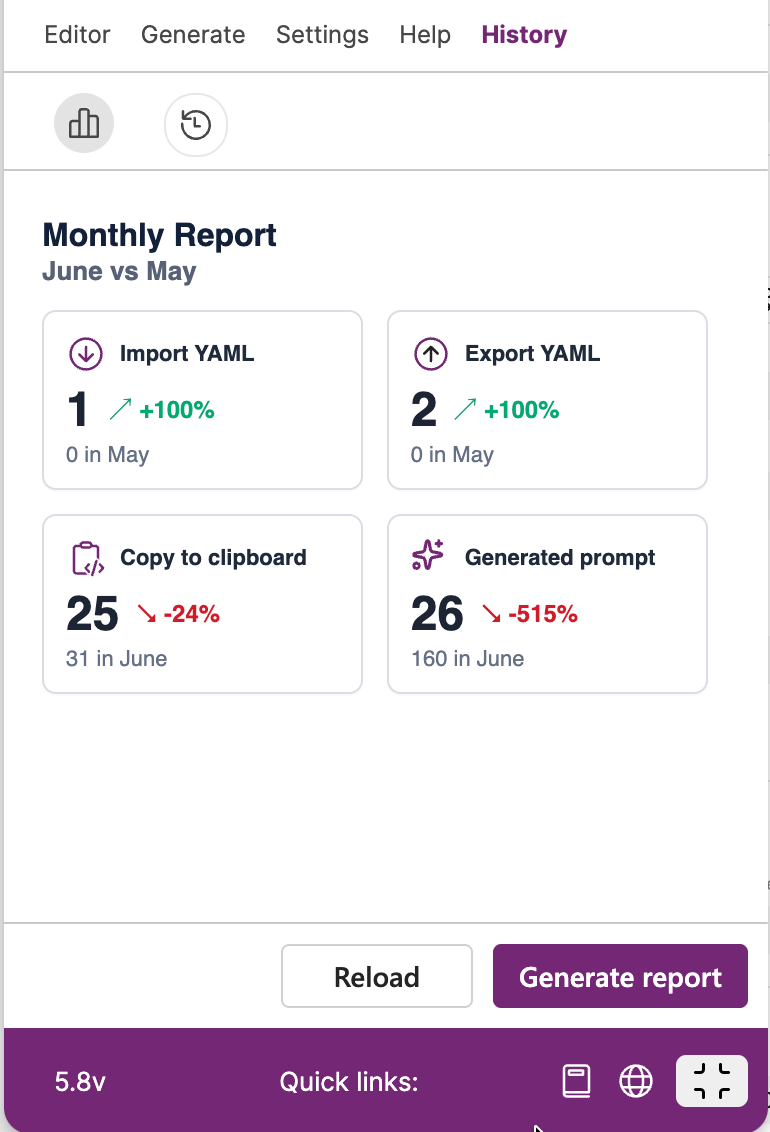
How to use Summary?
The first icon represents summary of all actions executed via this plugin. What you can see:
Summary of imported YAML files
Summary of Exported YAML files
Summary of Copied to clipboard
Summary of Generated prompts
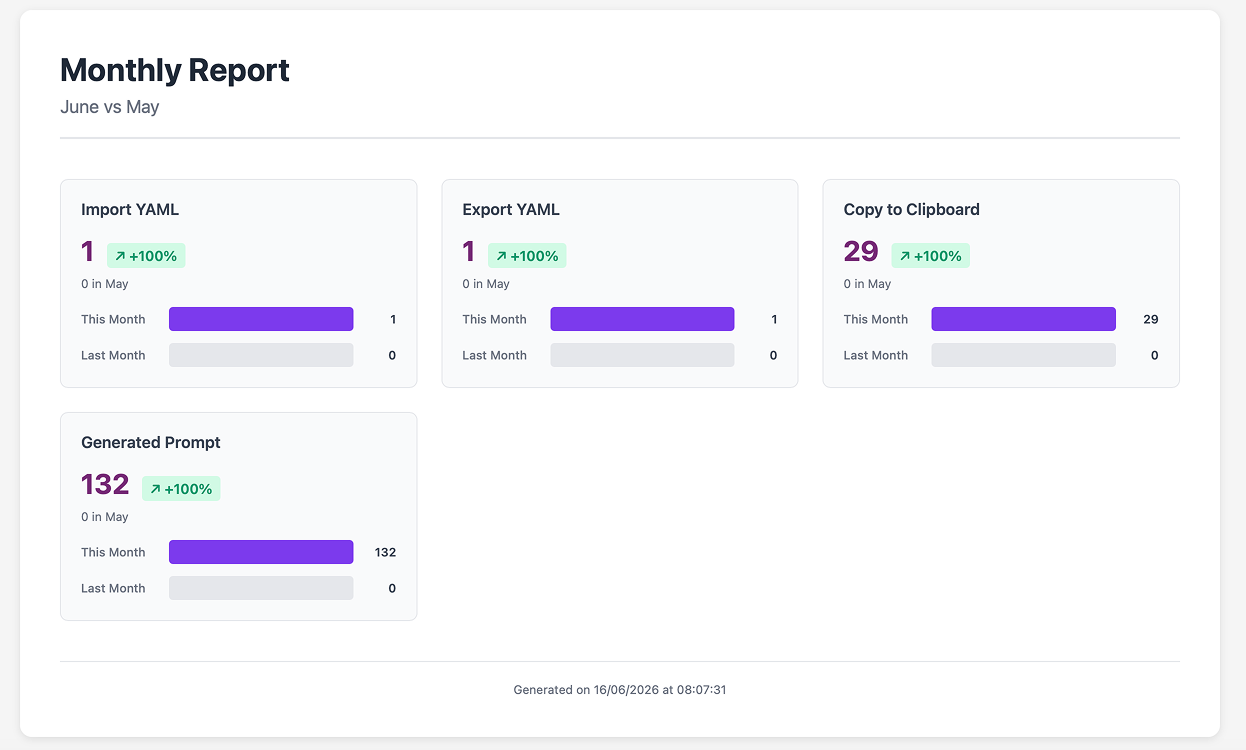
This part of the tab compares all actions executed in previous and current month. On the bottom you can reload or export the data to HTML file that will be saved in your local storage. This is example of the HTML file: 👇
How to use History?
Before using history of selected node in Figma, you need save your selected node of YAML code to storage. How to do it?
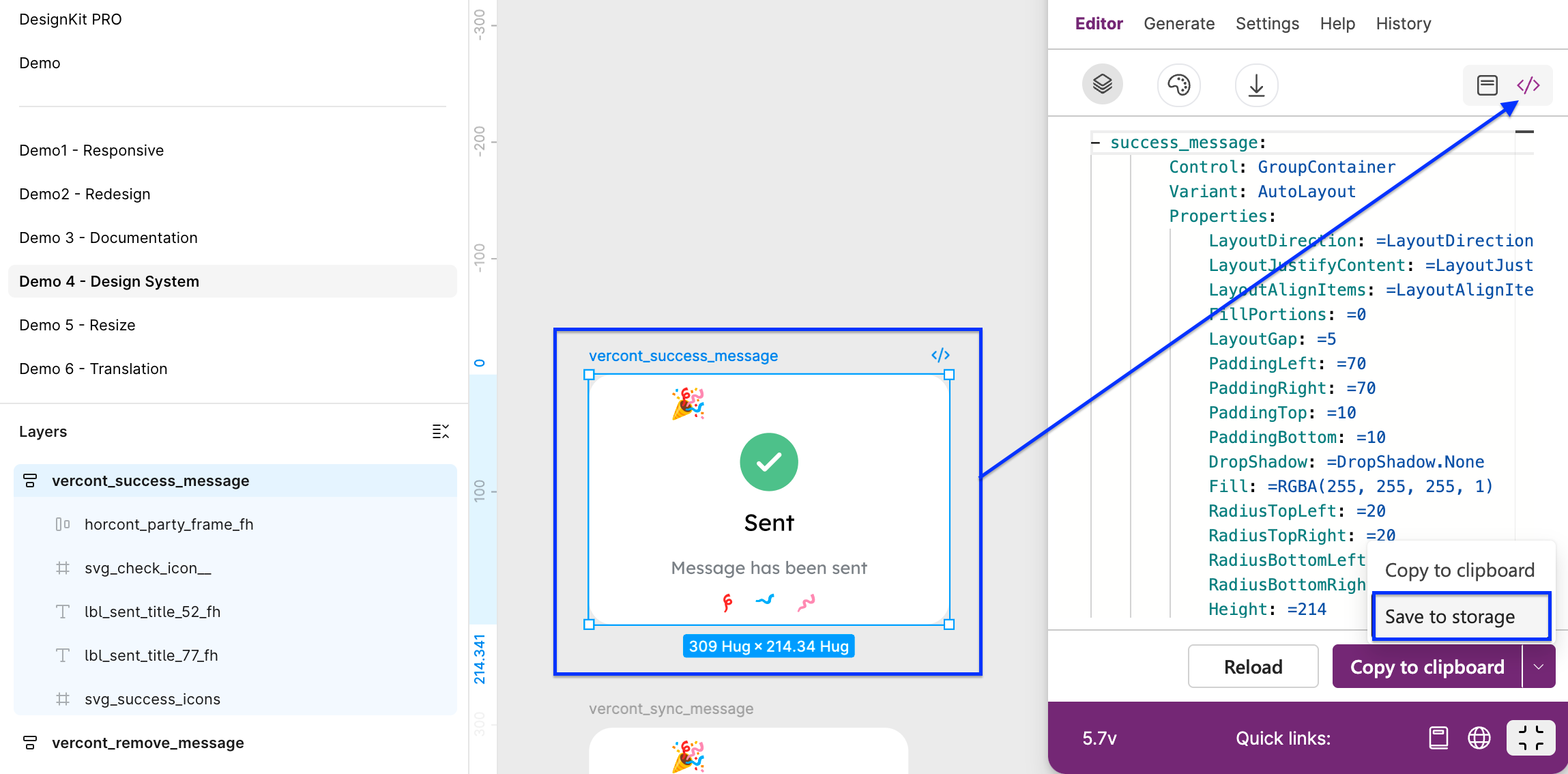
Select your screen or control
Go to Editor tab and choose YAML viewer
Choose “Save to storage“ button and click on the button
Your YAML code will be saved to storage
Then you can re-design your selected screen or control in Figma and go to History tab, click on history icon (second icon from the left) and see different versions of your YAML code.
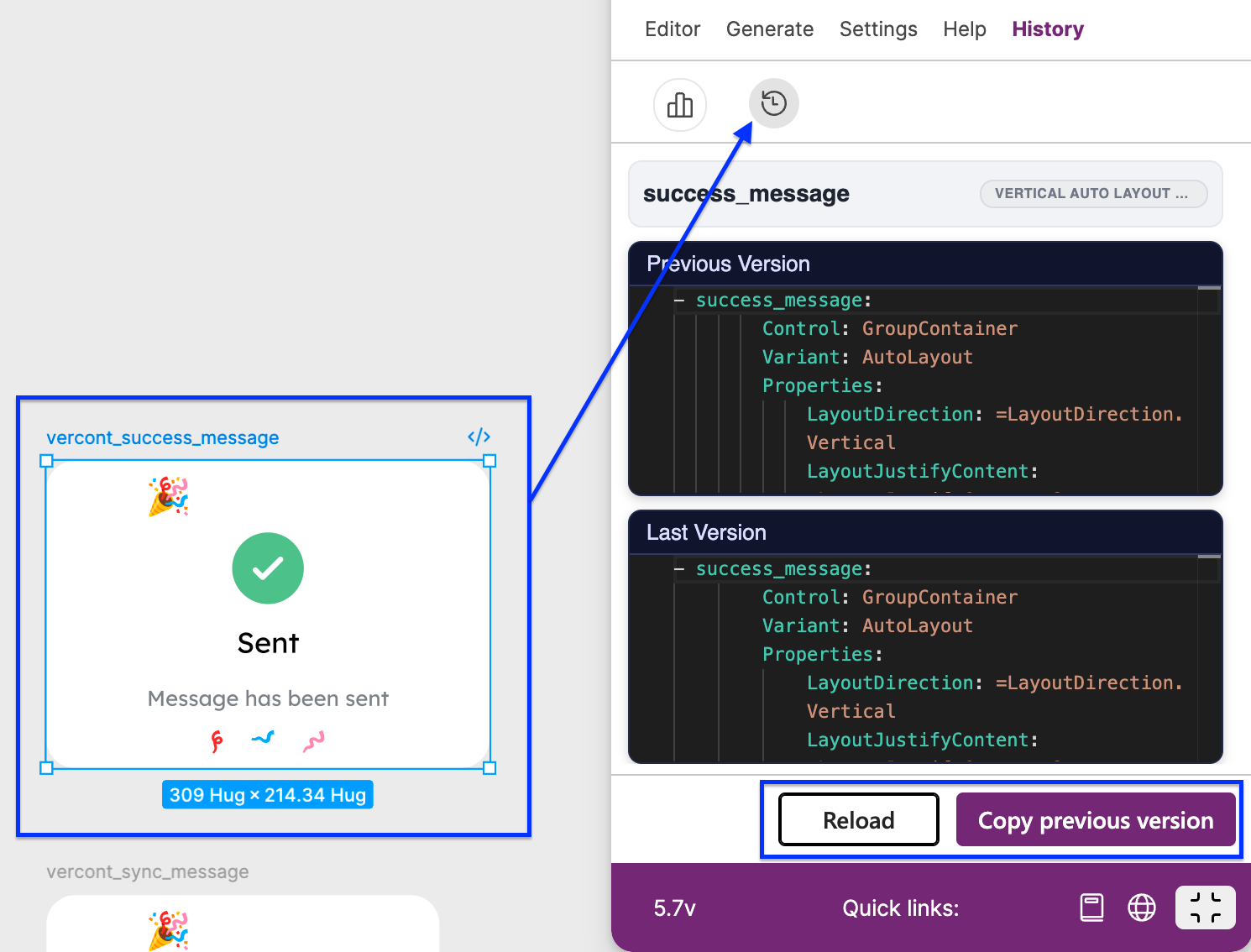
In header of the content you can see selected node with type of Power Apps control, two editors with previous and current version of YAML code, and 2 actions:
Reload - reload content of the selected node in Figma
Copy previous version - copy to clipboard YAML code for your previous version of the selected node
Editors are only in Read Only mode!!!
If you want to edit your YAML code, please visit this article Code Viewer