Builder
How to use Dataflows in builder.
Written By Lukas Pavelka
Last updated 28 days ago
Builder of Dataflows with tables visualisation. Plugin recognises table with columns of a selected Dataflow in Figma page.
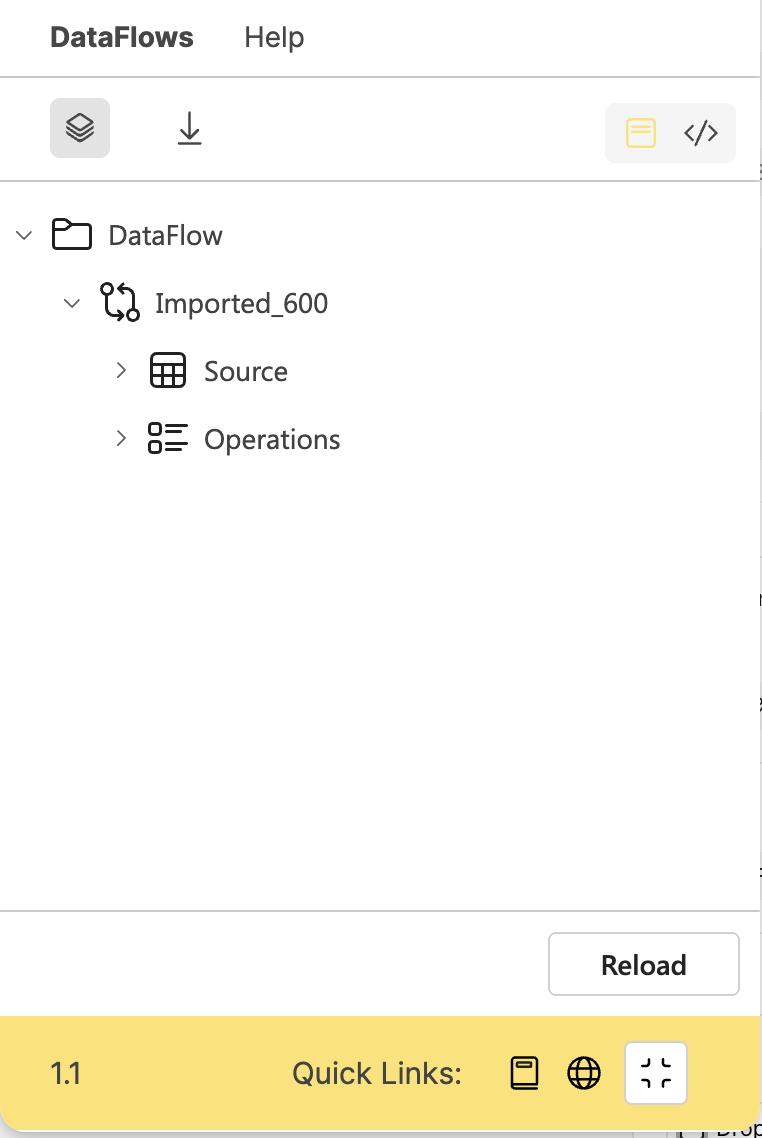
The plugin contains a reload button that helps you to reload data of selected Dataflow in Figma page.
How to add new Dataflow?
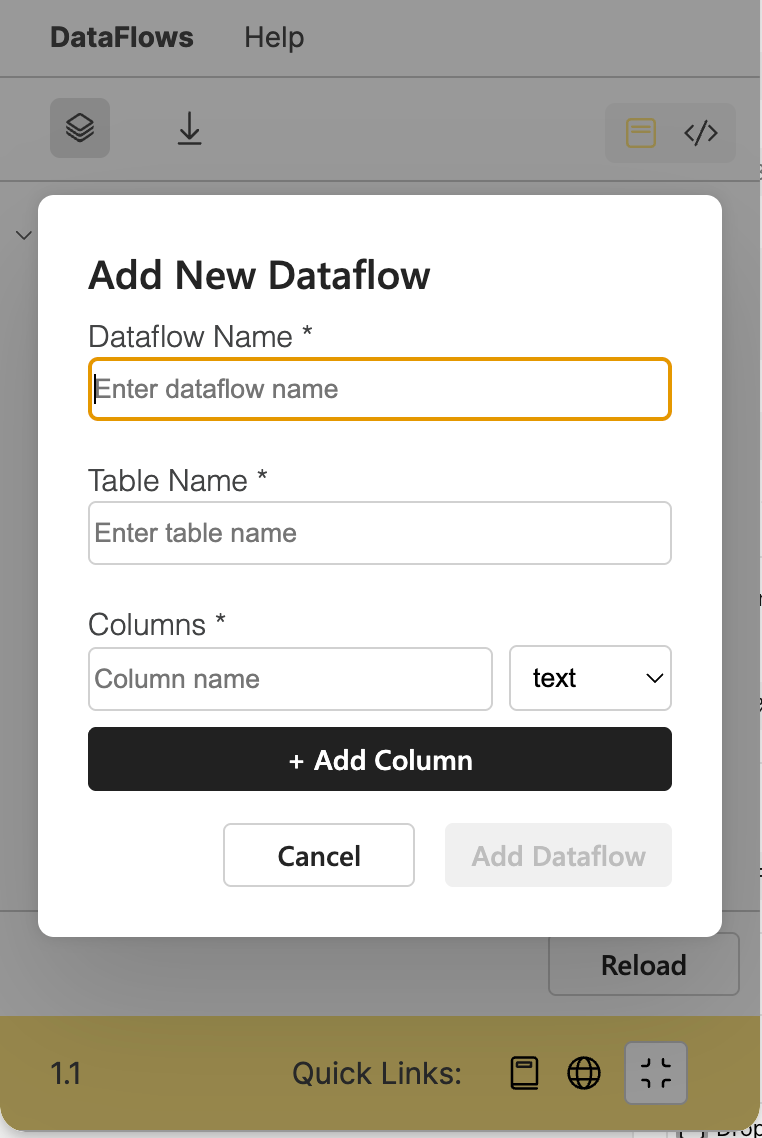
Go to Dataflow tab in builder layout and hover over the Dataflow tab item. Then click on the “+“ button. You will see the “Add New Dataflow“ dialog, where are the following fields:
Dataflow name - mandatory field of the name of Dataflow
Table name - mandatory field of the empty source table
Columns - mandatory field(s) of columns
Cancel and Add Dataflow - action buttons
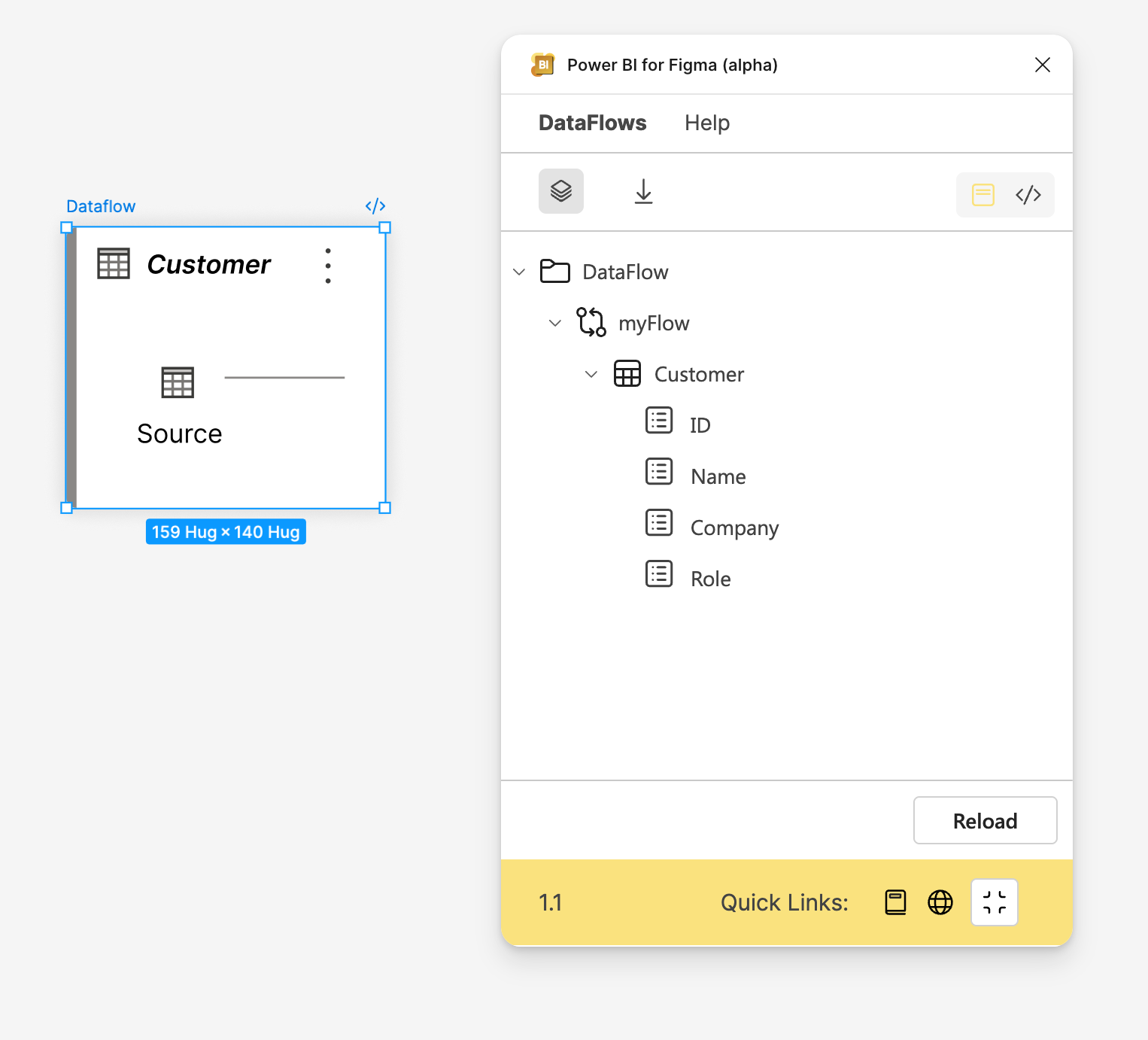
After saving the new Dataflow you will see in your Figma page the new Dataflow with source table. 👇
How to remove Dataflow?
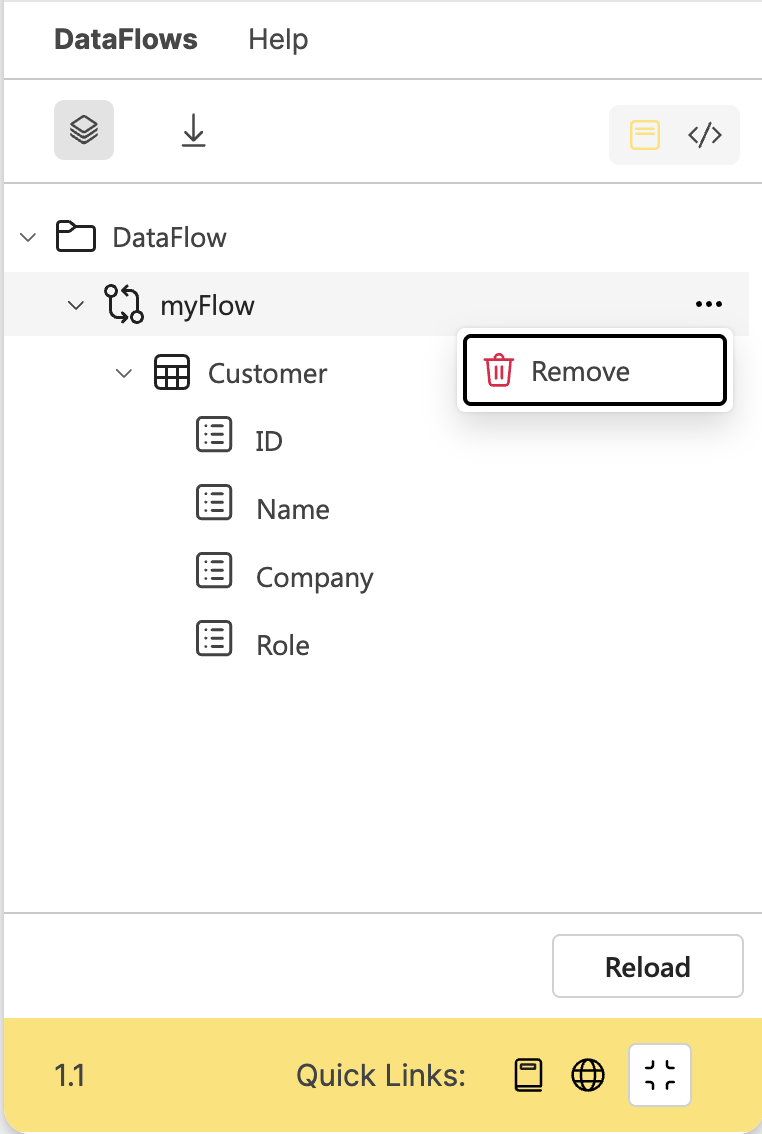
Hover over your created Dataflow and click on the 3 dots menu, where is only remove option. Click on the remove option and the Dataflow will be removed from your Figma page.
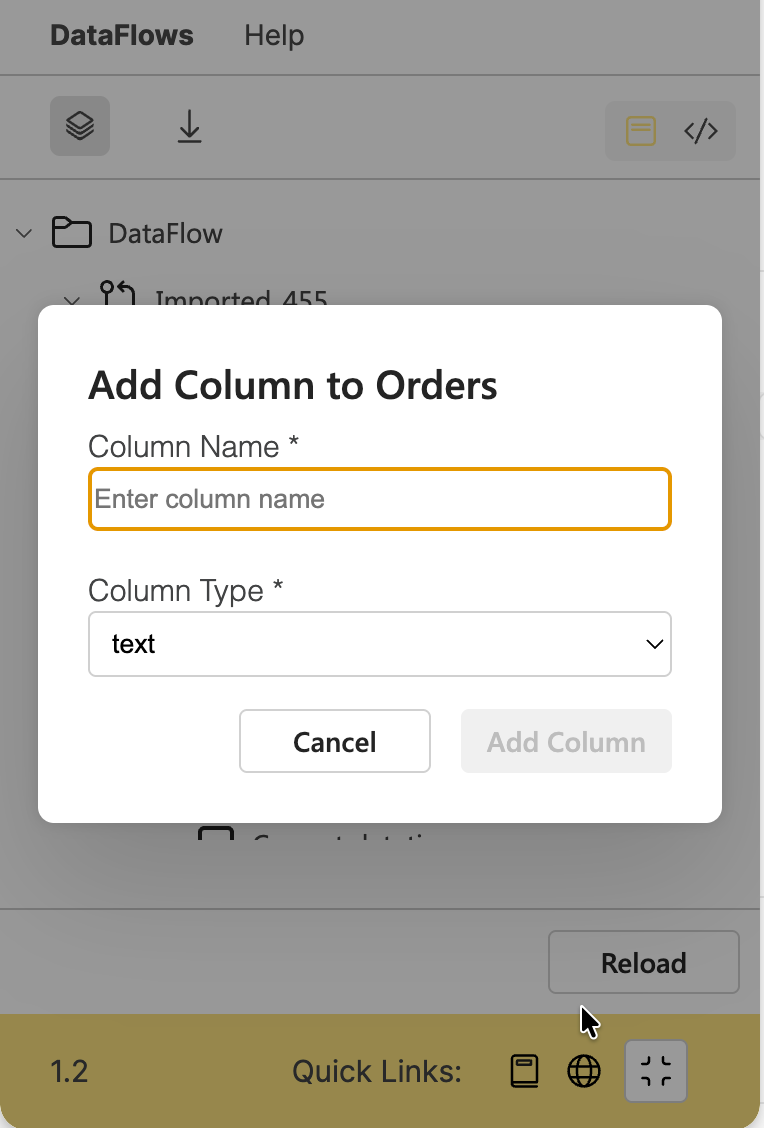
How to add new Column?
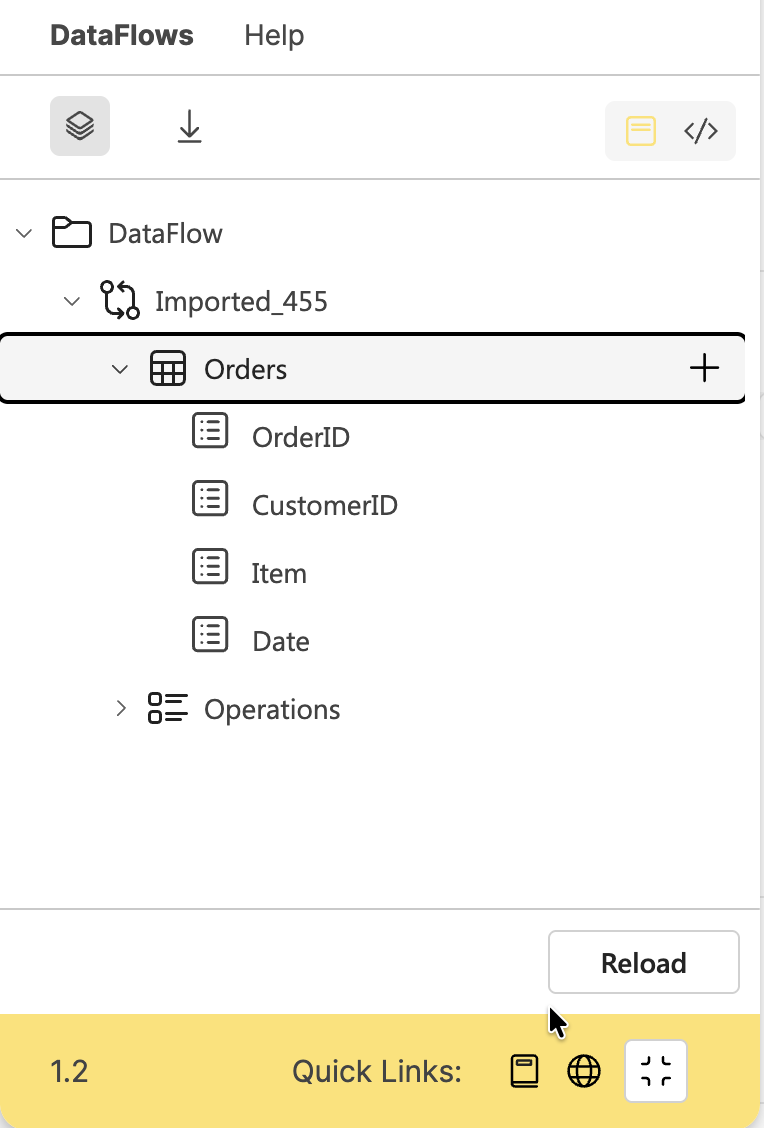
Click on the “+“ button and the popup will appear, where you can select the type of the new column and the name of the new column.
How to remove Column?
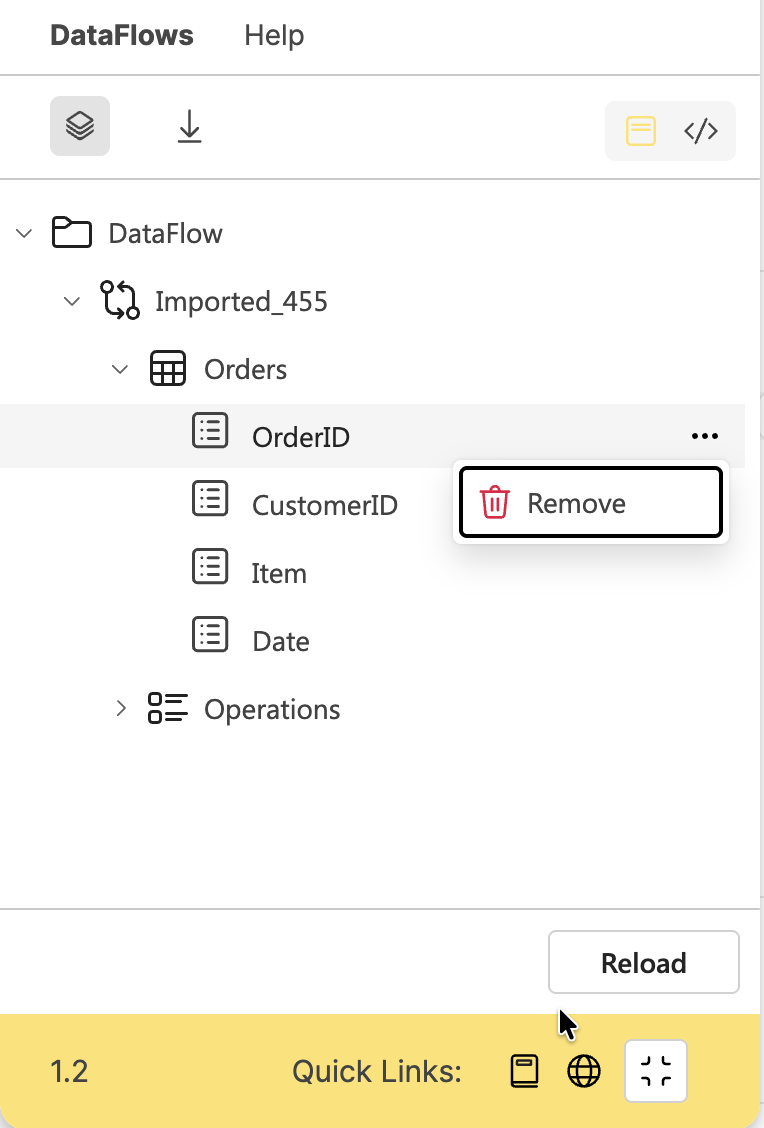
Click on the remove option and the Table column will be removed from your Figma page and from M query.
How to add new Operation?
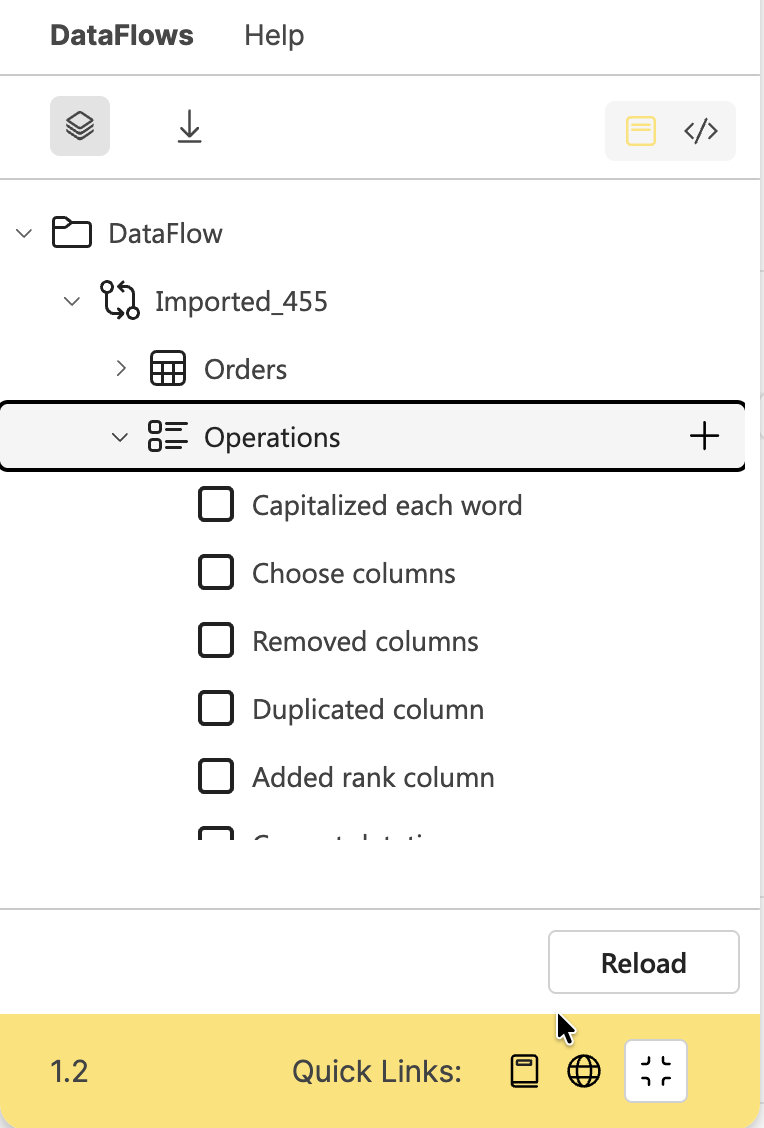
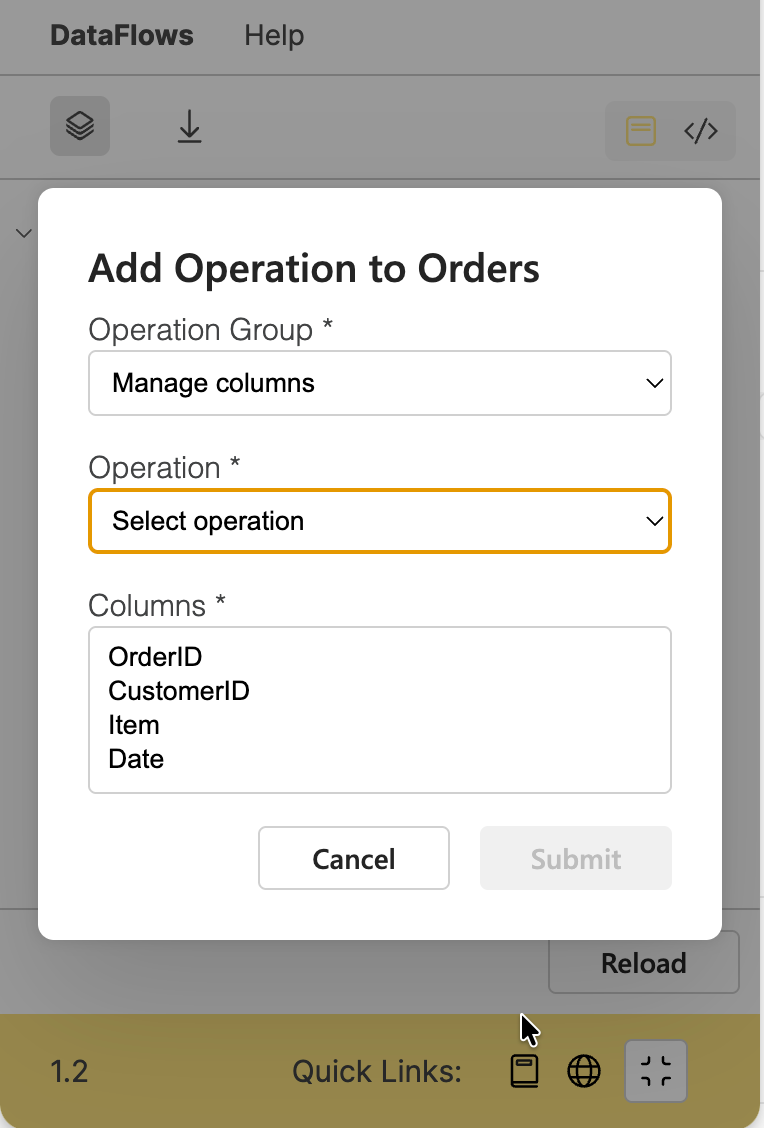
Click on the “+“ button and the popup will appear, where you can select the group of the new operation. Then you can select the operation type and columns.
In version 1.2 of the plugin you can select only ‘Manage columns‘, where are 3 operations: “Choose columns“, “Remove columns“ and “Remove other columns“
How to remove Operation?
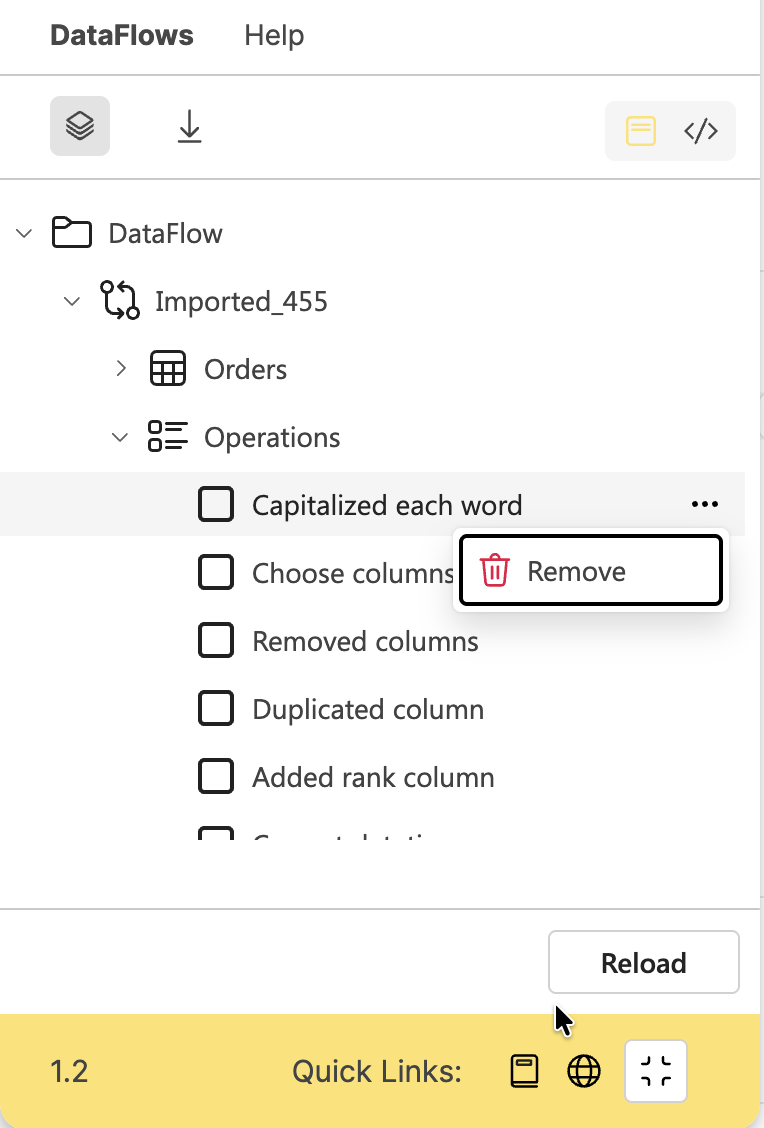
Click on the remove option and the Operation will be removed from your Figma page and from M query.
Was this helpful?
Still need help? Ask the team