Exporting to Power Apps
How to export Figma designs to Power Apps
Written By Lukas Pavelka
Last updated 4 months ago
Export via Button
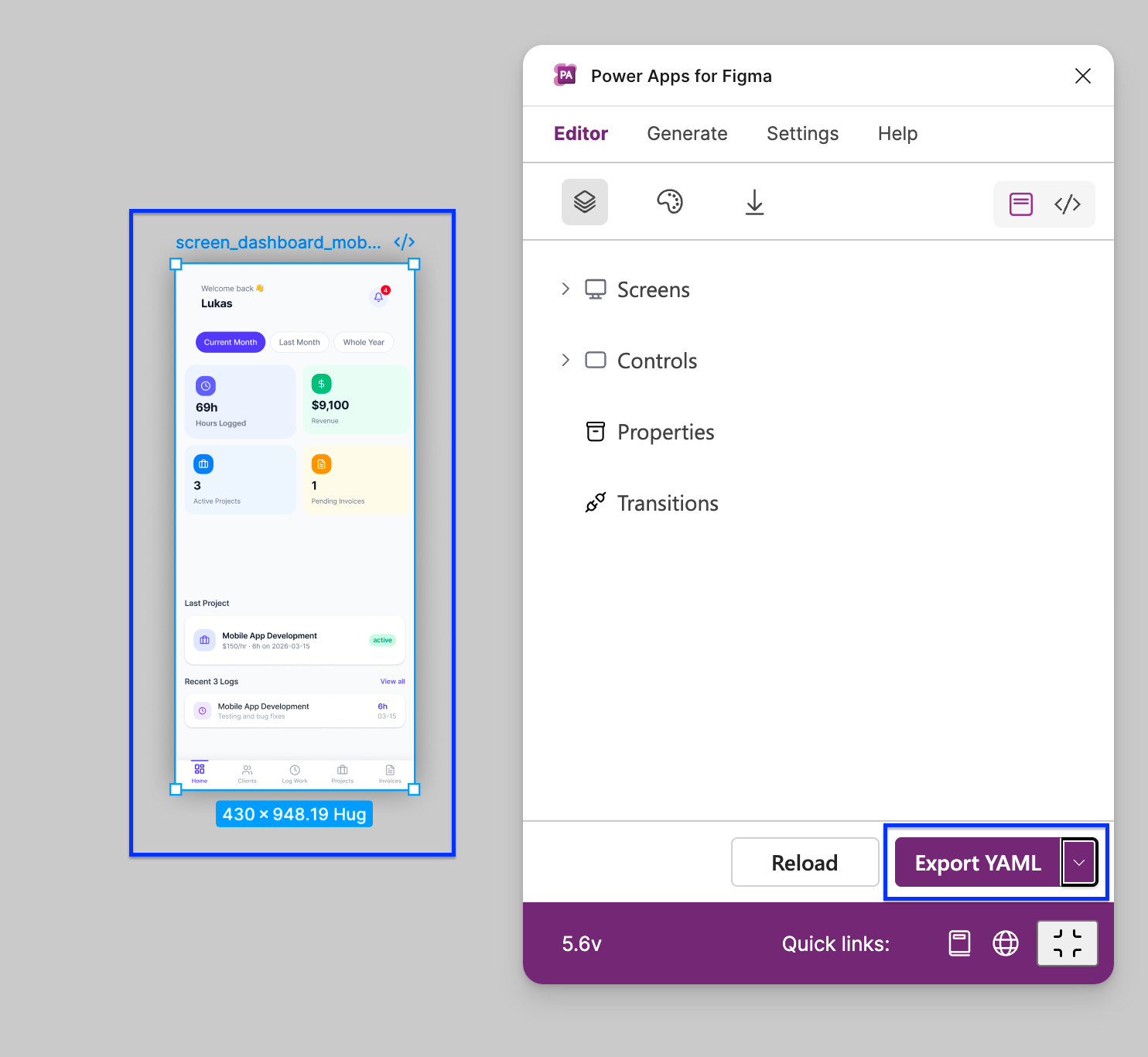
At first you need to select screen or control designed in your Figma page. Then click at “Export YAML” button. Plugin will export the selected screen(s) or control to a YAML file or ZIP file into your local folder.
In FREE version exporting is limited. You can export only classic controls.
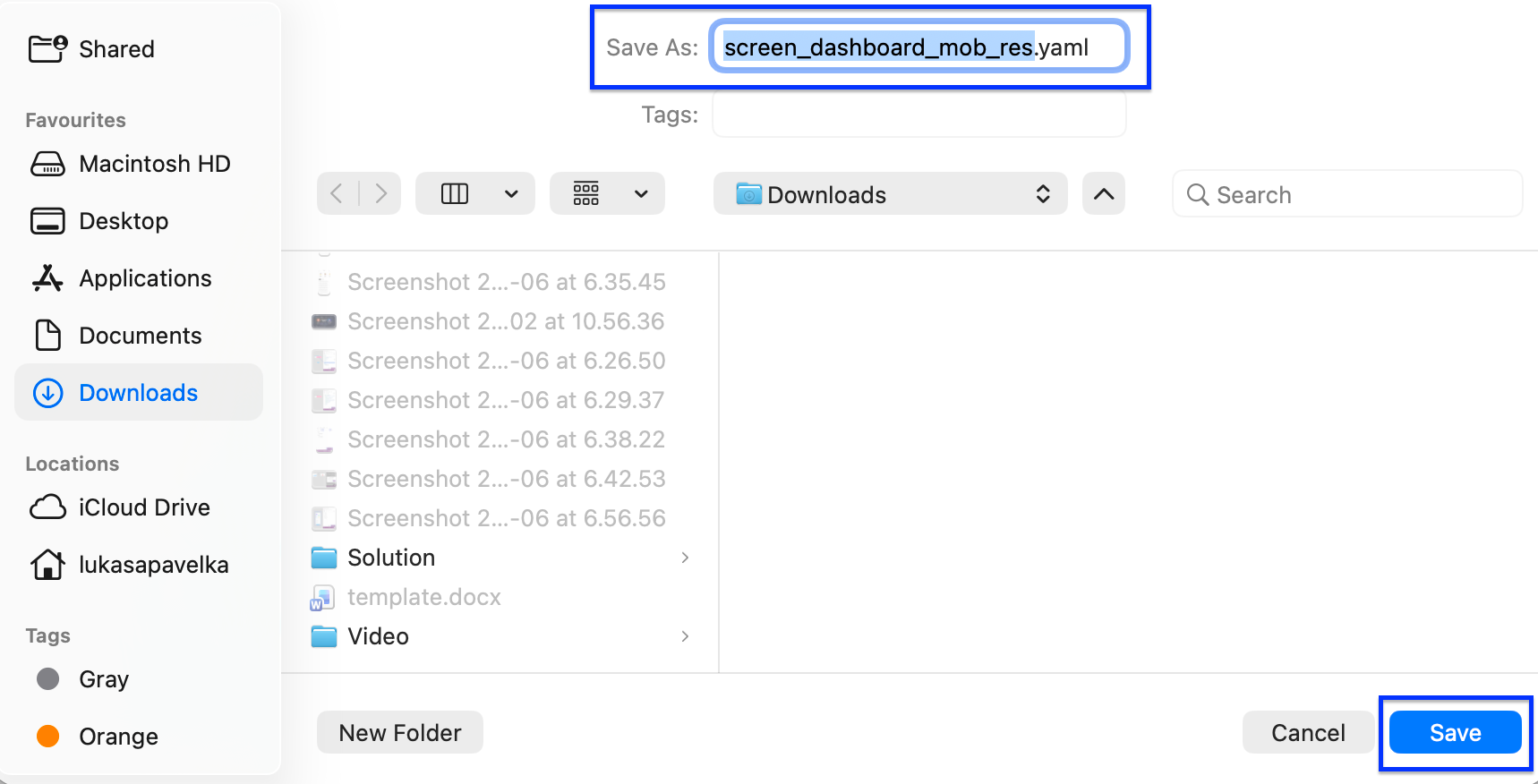
Choose your name for the YAML file, specify the folder where you want to save the file and click at “Save” button.
Export via Code Viewer
The Feature is available in the PRO version!!!
It is a viewer of YAML code for selected screen(s) or control.
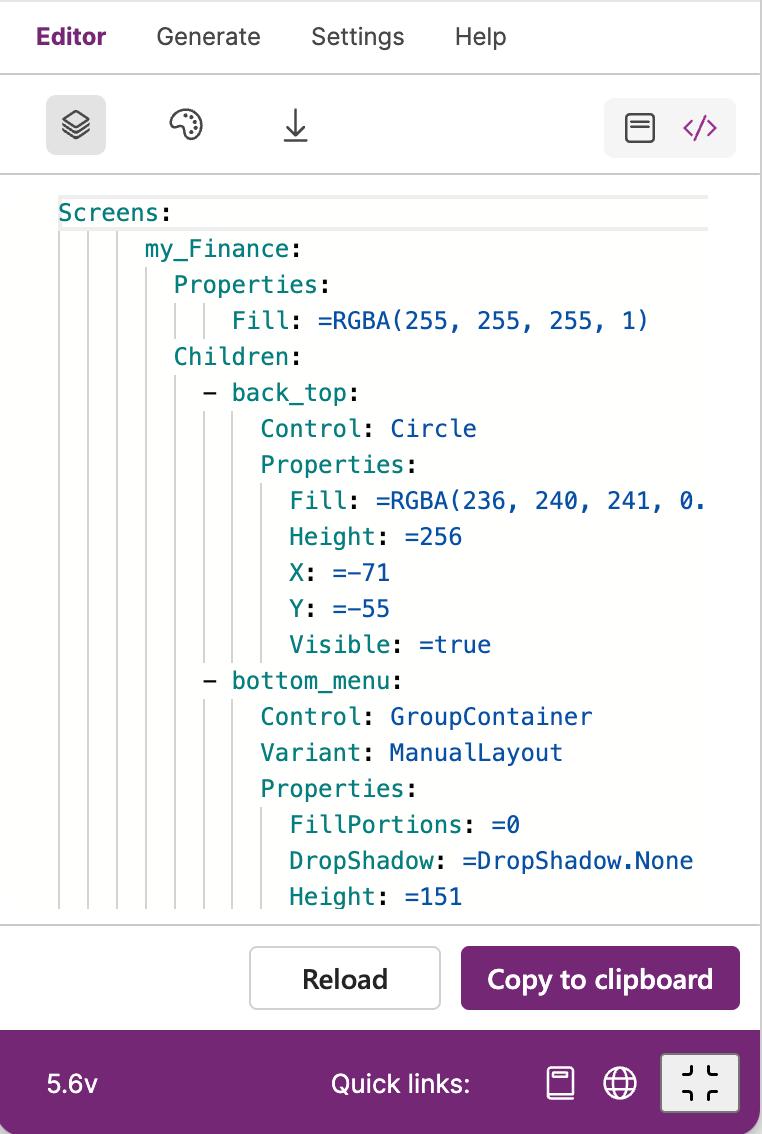
In this version, you can select only 1 control, or multiple screens. Select multiple screens help you to paste all selected screens from clipboard to Power Apps at once. The editor is fully editable. In other words, you can edit your visualised YAML code, remove, update, or add properties for particular controls.
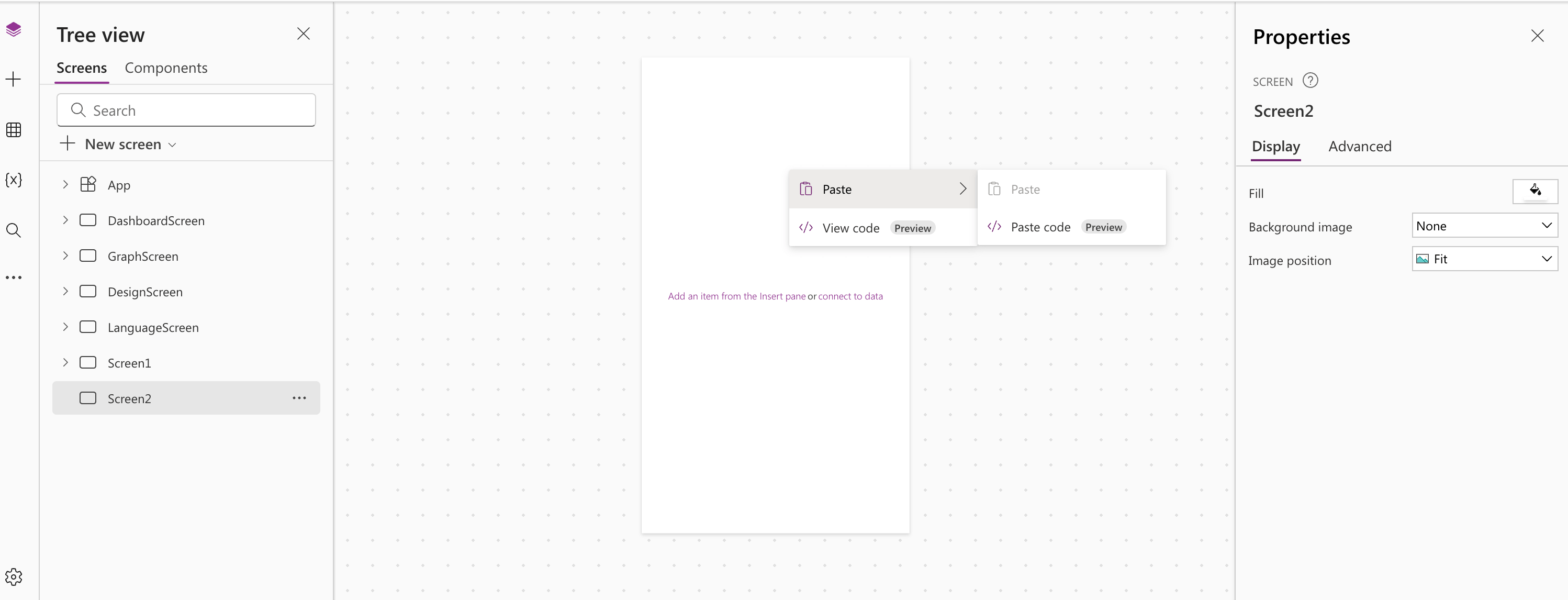
Every selected frame in your Figma page that contains supported prefix in Power Apps for Figma plugin, could be transferred to a readable YAML format compatible with Power Apps backend code format. After clicking at "COPY TO CLIPBOARD" button, the code will be copied to clipboard, which you can paste to your Power Apps screen. Like this:
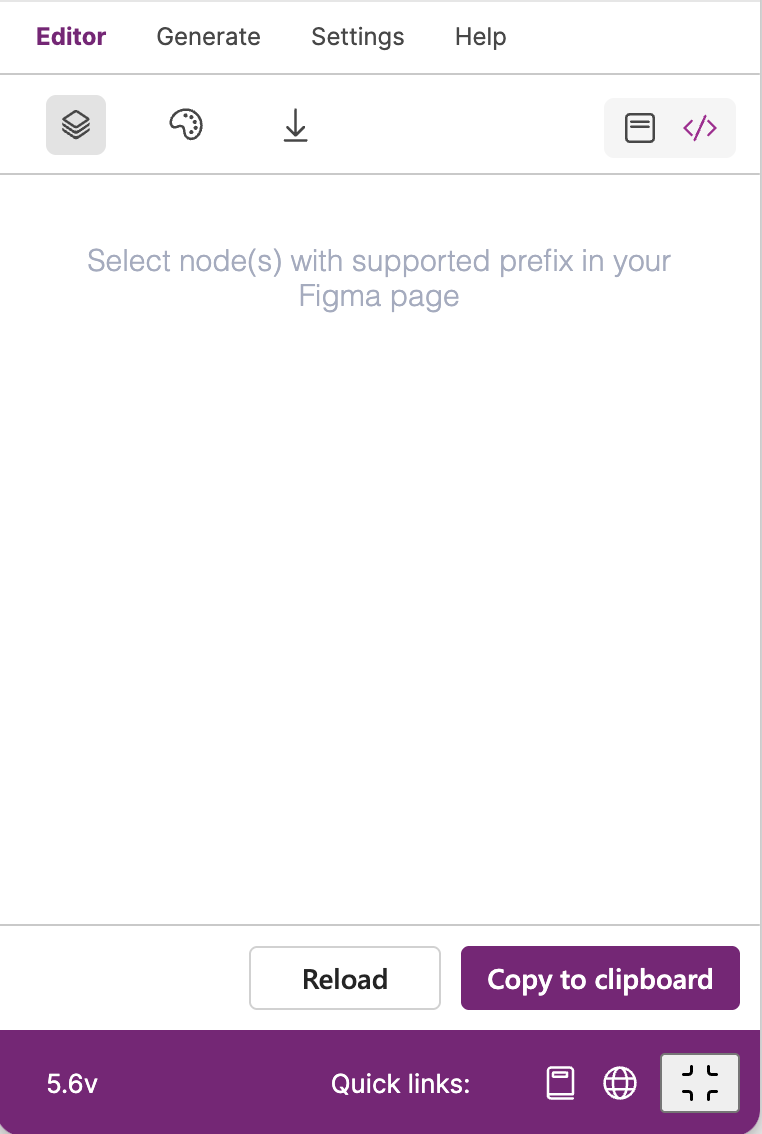
If your selected control does not have prefix or is unknown for the plugin, you will see the empty content with a message "Select node(s) with supported prefix in your Figma page."
Export via Menu item
This feature is available in the PRO version!!!
In Editor mode you can export YAML code for selected screen or control via menu item.
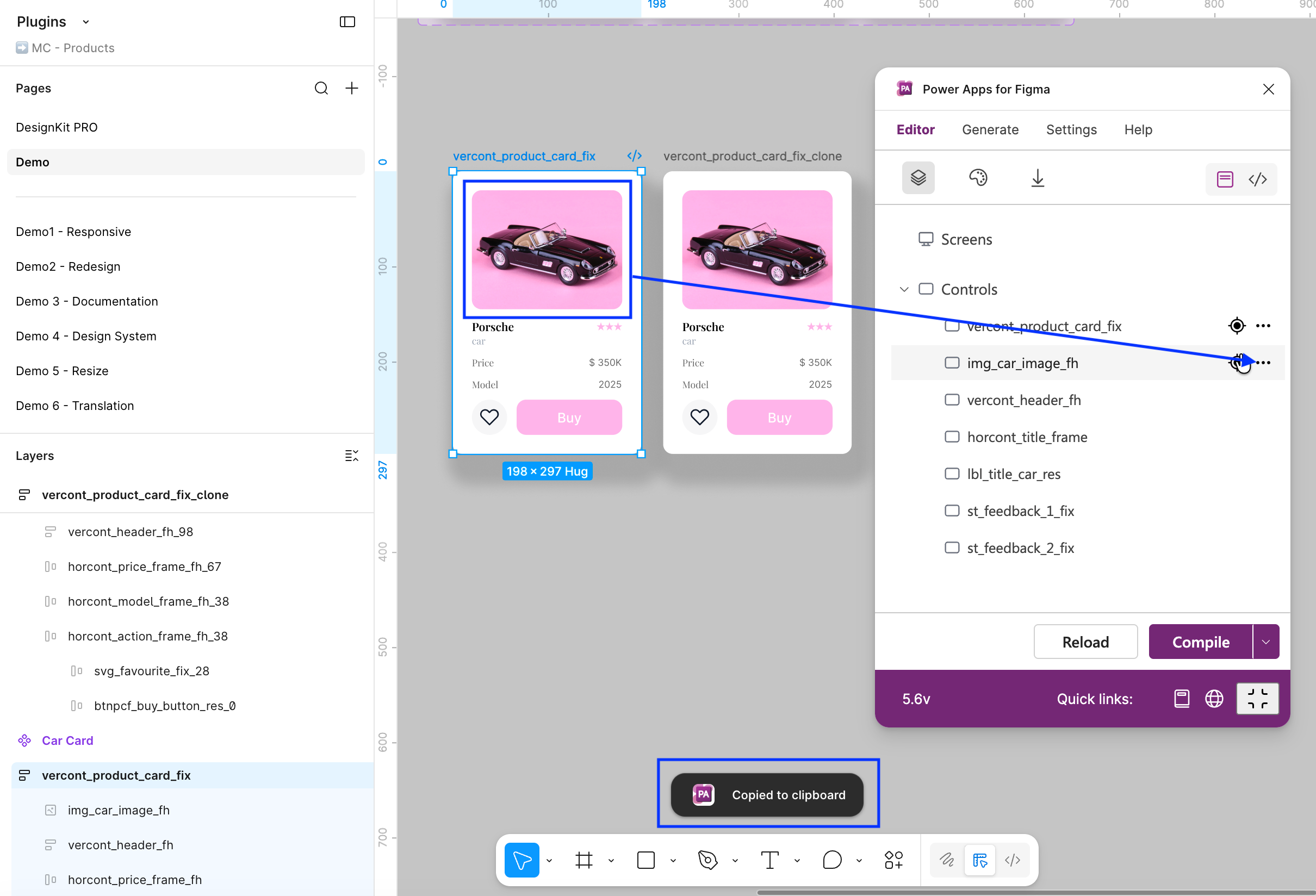
Select the screen or control you want to export, choose the ‘Copy to clipboard’ menu item, and your YAML code will be copied to clipboard.